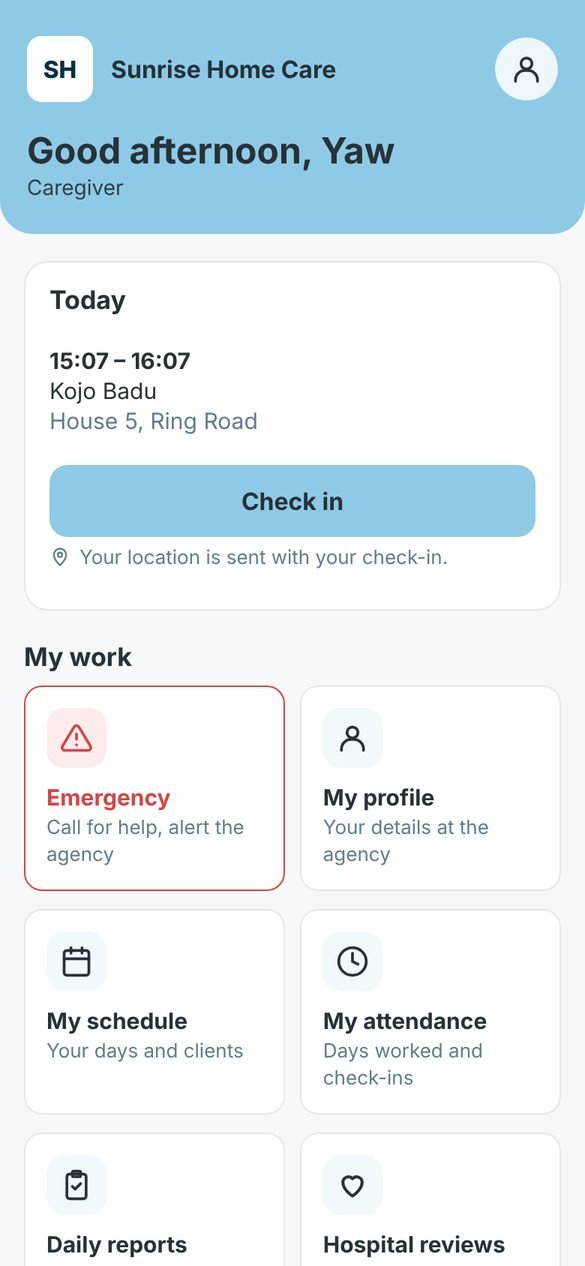
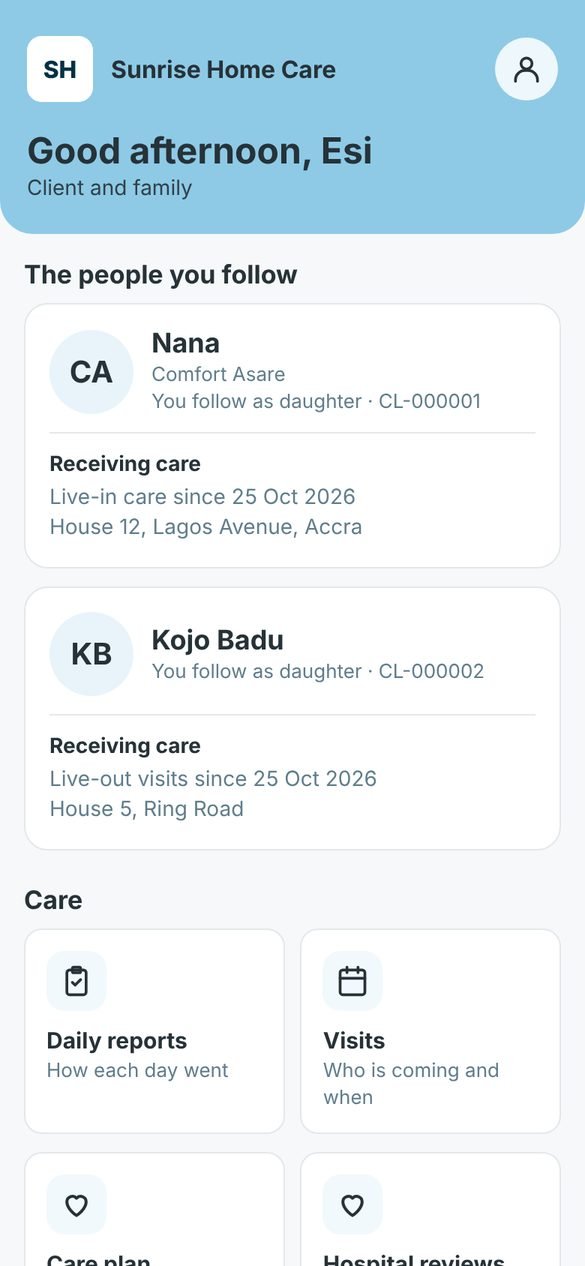
CL6 connects you with your home-care agency: your schedule and check-in, daily care reports, messages, payslips and invoices — all in one place. Use the same login on your phone or on a computer.
Free to download · Android 7 or newer
Log in with the email and password from your agency's invite. It is the same login everywhere.
Download the CL6 app and install it. You get notifications from your agency, check-in with your location, and reminders.
Download the app How to install itUse CL6 in Safari and put it on your Home Screen. It opens with the CL6 icon, like an app. Nothing to download.
Open CL6 How to add it to the Home ScreenOpen CL6 in any browser (Chrome, Edge, Safari, Firefox). On a shared or café computer, do not tick “Keep me logged in”.
Open app.cl6.agency Agency staff? Use cl6.agencyIt takes about a minute. Your phone may show a warning because the app does not come from the Play Store. That is normal for apps downloaded from a website.
Tap Download the app on this page. If Chrome asks, tap Download anyway.
When it has finished, tap Open. Or open Files → Downloads and tap cl6.apk.
If you see “For your security, your phone is not allowed to install unknown apps”, tap Settings, turn on Allow from this source, then go back.
Tap Install. If Google Play Protect warns you, tap More details then Install anyway.
Use the email and password from your agency's invite. When CL6 asks, tap Allow for notifications so you hear from your agency.
Apple only allows apps from the App Store, so on iPhone you use the CL6 website. Put it on your Home Screen and it opens like an app.
Go to app.cl6.agency in Safari (not Chrome).
Tap the Share button (the square with an arrow pointing up) at the bottom of the screen.
Scroll down and tap Add to Home Screen, then Add.
Tap the new CL6 icon and log in. Tick Keep me logged in on this computer so you stay logged in.
Your home-care agency adds you to CL6 and sends you an email invite. Open the link in the email to set your password. If you have no invite, call your agency.
Most changes reach the app by themselves. When a new version must be installed, CL6 shows “A new version of CL6 is available”. Tap it, download, and install it over the old one, the same way as the first time. Your login and everything in CL6 stay the same.
Android shows this for every app that does not come from the Play Store. CL6 is made by Callistron Technologies in Ghana. If you downloaded it from this page, it is safe to tap “Install anyway”.
Open your phone's Settings → Apps → CL6 → Notifications and turn them on. Some phones also stop apps in the background to save battery: in Battery, set CL6 to “Unrestricted” or “Don't optimise”.
Yes. Use the same login on your phone and on a computer. In CL6, My account → Devices shows where you are logged in.
Log in on another phone or computer, open My account and choose Log out everywhere, then change your password. Or call your agency.
Android 7 or newer. iPhones and computers use the CL6 website with the same features.
Agency staff manage clients, caregivers, schedules, pay and invoices on the agency website. Caregivers and families use the CL6 app.